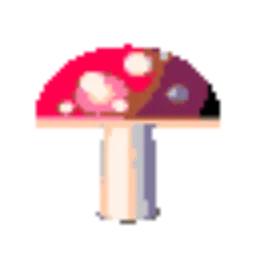
Smooth (bilinear) 4× enlargement
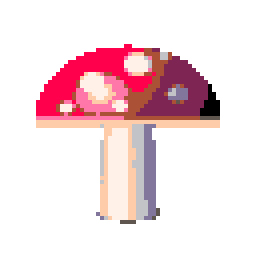
Nearest-neighbor 4× (this tool)
Add up to 30 sprites or pixel art images (up to 50 MB each) and scale them up by a whole number, 1×, 2×, 4×, 8× or 16×, with nearest-neighbor sampling, so every pixel becomes a sharp square with no blur and no new colors. This page keeps colors at 24-bit and pixel size at 1, and the result is a PNG or sprite sheet of up to 8,192 pixels per side, or a GIF of up to 2,048. The scaling happens in your browser.
Resize pixel art without blurring it
Most image editors and browsers scale images with bilinear or bicubic interpolation, which smooths the edges between pixels. That works for photos and ruins pixel art. This tool uses nearest-neighbor interpolation instead, so a sprite stays crisp at any whole-number scale.
Why standard scaling ruins pixel art
Photos have continuous gradients, so blending neighboring pixels during a resize looks natural. Pixel art is made of deliberate, hard-edged blocks of color. Bilinear interpolation blends those blocks together and turns sharp boundaries into soft blur, which is why the default resize in many editors, and in CSS, makes sprites look smeared.
Nearest-neighbor interpolation explained
Nearest-neighbor, also called point sampling, gives each output pixel the exact color of the nearest input pixel. Nothing is averaged or blended. Each original pixel becomes a solid block in the output, and no colors are added or lost.
Integer scaling
The cleanest results come from whole-number scales such as 2×, 4× or 8×. Every original pixel then becomes an identical square of output pixels. A 32 × 32 sprite at 4× becomes a crisp 128 × 128 image. The Output size menu offers 1×, 2×, 4×, 8× and 16×.
Workflows for game and web assets
Keep your master sprites at their native resolution and export scaled copies for each target. Add several files at once to scale a whole set with the same factor. For the web, the PNG compressor in lossless mode makes the scaled PNGs smaller without changing a pixel. Avoid resizers that smooth the image, since they reintroduce blur.
Scaling for print and merchandise
Pixel art prints well on t-shirts, posters, stickers and phone cases once it is scaled up enough. Print usually needs about 300 pixels per inch, so a 32 × 32 sprite printed 2 inches wide needs roughly 600 × 600 pixels. Scaling it 16× gives 512 × 512, and the visible pixel blocks are part of the look.
Default settings for this tool
Resizing uses pixel size 1 and 24-bit color, so the tool neither merges pixels nor changes colors. Output size is set to 4× the pixel grid, which turns each pixel into a 4 × 4 square using nearest-neighbor sampling, without blur. Dithering is off.
Choose 2×, 8× or 16× under Output size for other whole-number scales. Leave the pixel size at 1 when the input is already pixel art, because raising it would pixelate the image a second time. PNG results are capped at 8,192 pixels on the longest side and GIFs at 2,048. When the chosen scale would go past that, the tool uses the largest whole number that fits, so a 1,000 pixel wide image set to 16× comes out at 8× as a PNG and at 2× as a GIF. For PNG and GIF output, the preview shows the final dimensions before you download.
Animated sprites and GIF output
An animated GIF you add is read as its first frame only. To scale an animation, add its frames as separate images, set the output to GIF or sprite sheet and turn on Animate, and every frame is scaled by the same factor. Keep in mind that a GIF holds at most 256 colors, so a source with more colors than that is reduced when it is saved as GIF. PNG output keeps every color exactly.
Frequently Asked Questions
Why does my pixel art look blurry when I resize it?
Your editor most likely uses bilinear or bicubic interpolation, which smooths the boundaries between pixels. Pixel art needs nearest-neighbor interpolation, which copies each pixel's color without blending. This tool always uses nearest-neighbor for scaling.
What is integer scaling?
Multiplying the image dimensions by a whole number, such as 2×, 4× or 8×. Each original pixel then maps to an exact square in the output, so all the blocks are the same size. Scaling by 1.5× or 2.5× would make some blocks larger than others.
Can I scale pixel art up without it looking blocky?
Pixel art is meant to look blocky, and this tool keeps the blocks crisp and even. If you want a smooth look instead, the image would need to be redrawn in a different style.
How do I scale pixel art for high-DPI displays?
Use a larger whole-number scale. High-density screens such as Retina displays pack 2 to 3 device pixels into each CSS pixel, so exporting at 4× or 8× keeps the art sharp at a comfortable physical size.
Can I scale pixel art down?
You can reduce resolution by raising the pixel size, which merges each block of pixels into one. Detail lost that way can't be recovered, so always keep your original file.