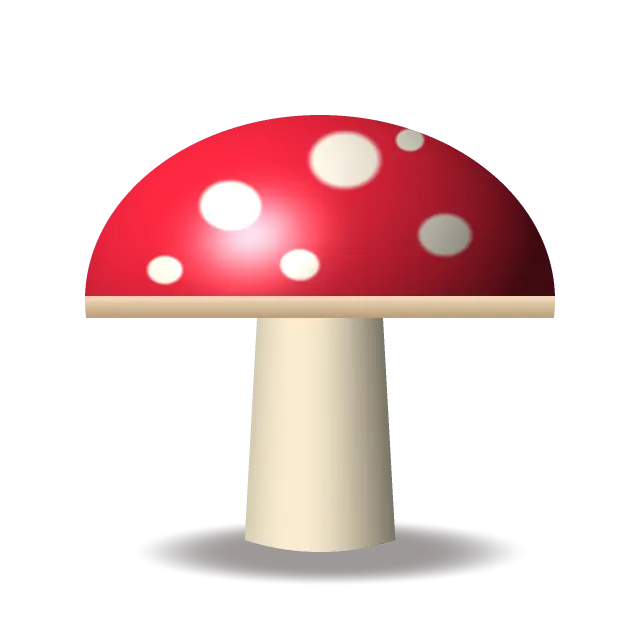
Original illustration
Game Boy palette, Bayer 4×4
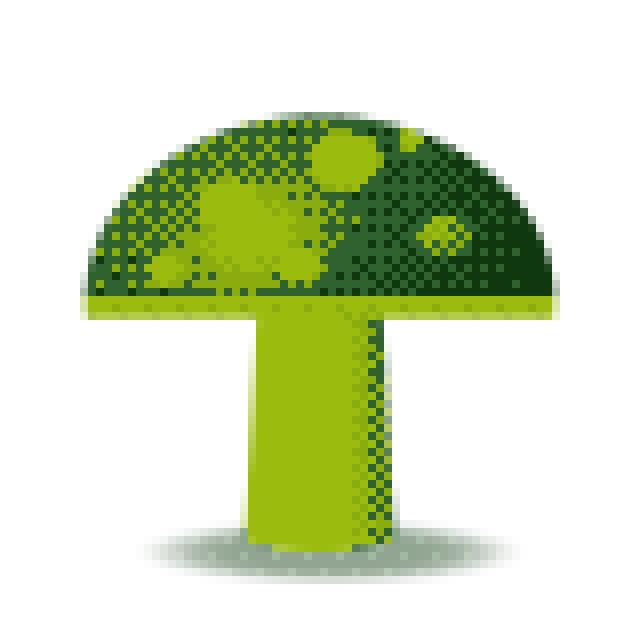
Add up to 30 images (up to 50 MB each), such as a sketch of your own creature, and turn them into Game Boy style pixel art in the classic four shades of green. This page starts with pixel size 8 and Bayer 4×4 dithering, and you can set an exact sprite size like 64 × 64, switch to color palettes, make edges crisp for sprites, and export PNG, GIF or a sprite sheet. Everything is processed in your browser.
Create Pokemon-style pixel art and sprites online
The first Pokemon games came out on the Game Boy in 1996, and their small, expressive sprites still shape how many people picture pixel art. This free Pokemon pixel art maker converts your reference images, fakemon sketches and fan art into that handheld look without installing any software. It works from an image you add; there is no blank canvas or drawing mode.
Pokemon pixel art across generations
The first games showed sprites in a handful of shades on the original Game Boy's green screen, and standard battle sprites were 56 by 56 pixels. Artists conveyed a whole personality with careful shading and bold outlines on that tiny grid. On the Game Boy Advance, from Generation 3, sprites gained up to 15 colors plus transparency and a larger 64 × 64 frame, which allowed smoother shading and more detailed poses.
How to make Pokemon pixel art in your browser
Pixel artists usually work in programs like Aseprite or GraphicsGale. For a quick start, add a reference image here, set the sprite size or pixel size to match the resolution you want, and pick a palette. The Game Boy palette maps every pixel to one of four greens, and the dithering setting suggests in-between shades with a pattern of those four colors.
Designing fakemon and custom sprites
Fakemon are original creatures drawn in the style of official sprites. A good one has a clear silhouette at small sizes, a consistent light source, and usually a one-pixel outline. You can turn your concept art into a low-resolution base here, then finish the outline and shading by hand in a pixel editor.
Pixel art for fan games and ROM hacks
The Pokemon fan game and ROM hacking scene is large and active, and fan projects need a lot of custom sprites. The tool saves standard PNG files, which keep transparency when your source image is transparent, so you can import them into RPG Maker, Unity, Godot and other engines. Several frames can be exported together as a sprite sheet with a JSON frame map.
Why the style lasts
Pixel art asks for precision and rewards creativity within strict limits, and the early Pokemon sprites are a familiar example of what a few colors on a small grid can do.
Default settings for this tool
Pokemon-style art starts with pixel size 8 and the Game Boy palette of four green shades. The named palette sets the colors, so bit depth is not applied. Dithering is Ordered (Bayer 4×4), which mixes the four shades in a small repeating pattern to suggest in-between tones. The output keeps about the original size.
For a color sprite, switch the palette to By bit depth and pick 8-bit or 16-bit, or try PICO-8. Set Dithering to None for flat shading.
What the four shades do to an image
Every block is matched to the nearest of the four greens, so the result is decided almost entirely by brightness. A colorful image with similar light and dark values, such as red on green, can turn into one flat shade. Raising the contrast of the source before converting, or picking a reference with a light subject on a dark background (or the reverse), keeps the shape readable. Bayer 4×4 then turns the zones between two shades into a fine checker of both, which is how the default suggests more than four tones.
This is an independent fan tool, not affiliated with or endorsed by Nintendo, The Pokémon Company or Game Freak. The Pokemon name is used only to describe the style.
Frequently Asked Questions
What pixel size should I use for Pokemon-style sprites?
Original Game Boy battle sprites were 56 × 56 pixels, and Game Boy Advance sprites used a 64 × 64 frame. Choose the 64 × 64 sprite size for an exact grid. There is no 56 × 56 preset, so for that size divide your image's width by 56 and use the result as the pixel size: a square image 560 pixels wide at pixel size 10 gives a 56 × 56 grid. Turn on Square crop first if the image isn't square. The preview shows the grid size as you move the slider.
How many colors can I use for authentic Pokemon pixel art?
Game Boy era sprites used only a few shades, and Game Boy Advance sprites used up to 15 colors plus transparency. The Game Boy palette here gives you 4 colors. For a GBA feel, choose "From the image" with 15 colors, or the 4-bit setting, which uses a fixed set of 16 colors.
Can I use Pokemon pixel art I make for fan games or ROM hacks?
The tool places no restrictions on what you make. Pokemon characters and designs belong to their owners, though, so fan projects depend on their goodwill, and official sprites should never be used in commercial work. Original designs inspired by the style are the safest route.
How do I get the classic Game Boy green monochrome look?
Choose the Game Boy palette, which this page already uses. It has the four classic shades: lightest (#9BBC0F), light (#8BAC0F), dark (#306230) and darkest (#0F380F). Every pixel of your image is mapped to one of these, and ordered dithering fills in the in-between tones.