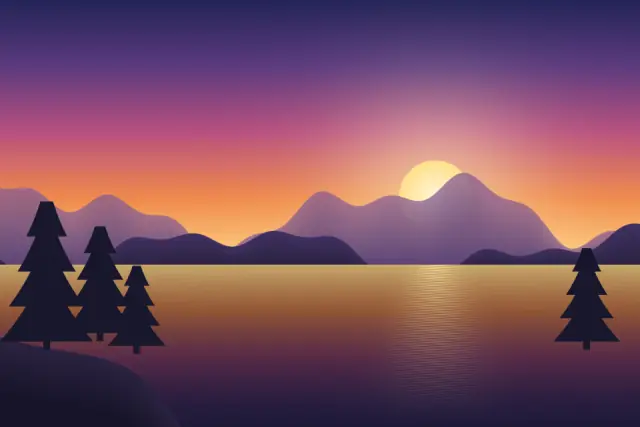
Original illustration
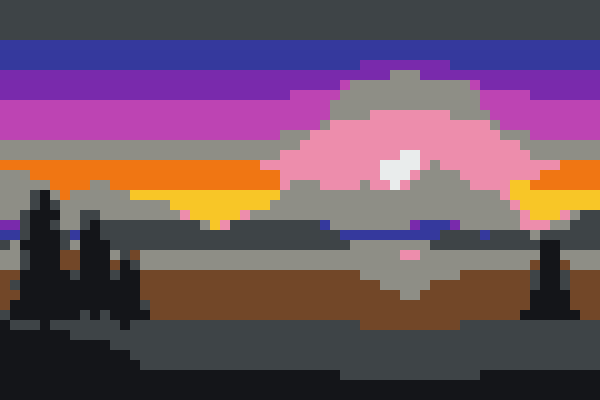
Minecraft wool palette, pixel size 16
Add up to 30 images (up to 50 MB each) and turn them into blocky pixel art that uses only the 16 Minecraft wool colors, so every pixel matches a wool block you can place in your world. Set the block size or an exact grid of 16, 32, 64, 128 or 256 pixels, then export at 1× to get one pixel per block as a build plan. The conversion runs in your browser.
How to create Minecraft pixel art from any image
Pixel art murals are one of the most popular things to build in Minecraft, from small logos to huge walls in survival worlds. This Minecraft pixel art generator turns an image into a grid of wool colors that you can copy block by block.
Understanding Minecraft texture sizes
The vanilla game uses 16 × 16 pixel textures for blocks and items, which is where its blocky look comes from. The sprite size option can produce an exact 16 × 16 grid, or 32 × 32 and 64 × 64 if you are drawing for a higher resolution texture pack or want a more detailed piece. The tool doesn't create texture pack files; you get a PNG to use as a reference or as a starting point in a texture editor.
Converting real images to Minecraft block art
The converter divides your image into blocks and maps each one to the nearest of the 16 wool colors (white, light gray, gray, black, brown, red, orange, yellow, lime, green, cyan, light blue, blue, purple, magenta and pink). Dithering is off by default so each block stays one flat color, and you can turn it on to suggest shades the wool palette doesn't have.
High-contrast images with clear shapes work best. Logos, cartoon characters and sprites from other games convert especially well, since they already use few colors and bold outlines.
Minecraft skins
Minecraft skins use a 64 × 64 template where each body part has its own region. This tool doesn't create that layout. A 64 × 64 output is just your image scaled down to 64 × 64, which you could use as a reference in a skin editor, but it won't map onto the character model as is.
Building pixel art in your Minecraft world
Each pixel in the result is one block. A 32 × 32 piece needs a 32 by 32 area, so 1,024 blocks. Many builders lay the design flat on the ground first and then raise it into a wall, or use a world editing plugin for large pieces.
Tips for better Minecraft pixel art
Start small and simple. Images with a few strong colors map to wool more cleanly than detailed photos, so raising the contrast and saturation of a photo before converting often helps. Shading with two tones of the same color adds depth to flat areas.
Default settings for this tool
This generator loads pixel size 16 and the Minecraft wool palette, which has 16 colors. The palette fixes the colors, so bit depth is not applied, and dithering is off so that each block is one flat wool color. The output stays at about the original size.
To plan a build, set Output size to 1× the pixel grid: each pixel of the result then stands for one block. A lower pixel size makes a larger, more detailed build, and a higher one makes a smaller build.
The build size is the image size divided by the pixel size. At the default of 16, a 1,024 × 768 image becomes a 64 × 48 grid, which is 3,072 blocks. The same image at pixel size 32 becomes 32 × 24, only 768 blocks. The preview shows the grid size and how many distinct colors the result uses, so you know how many kinds of wool to gather before you start.
This is an independent fan tool, not affiliated with or endorsed by Mojang Studios or Microsoft. The Minecraft name is used only to describe the style.
Frequently Asked Questions
What resolution should I use for Minecraft pixel art?
16 × 16 matches the vanilla texture size and makes a quick build. For a mural with more detail, try 32 × 32 or 64 × 64, keeping in mind that the block count grows fast.
Can I convert any photo into Minecraft pixel art?
Yes. The tool accepts PNG, JPG, WebP, AVIF, HEIC and other common formats. Photos with high contrast and simple compositions convert best, while busy photos lose detail at small grid sizes.
How do I build pixel art in Minecraft from a generated image?
Export at 1× so each pixel is one block, then place a wool block of the matching color for each pixel. Building flat on the ground first makes it easier to follow the plan, and for large designs a world editing plugin can save time.
Does the tool match Minecraft's actual block colors?
It uses the 16 wool colors, so every pixel corresponds to a wool block that exists in the game and the art can always be built. Other blocks such as concrete or terracotta are not included in the palette.
Can I create Minecraft skins with this tool?
No. Skins need the 64 × 64 skin layout, where each body part sits in a set region, and this tool doesn't produce that template. You can use a 64 × 64 pixel version of your image as a color reference in a dedicated skin editor.
What image formats are supported?
PNG, JPG, JPEG, WebP, AVIF, HEIC, GIF (first frame) and BMP. Download the result as PNG, which keeps exact pixel colors without compression artifacts.