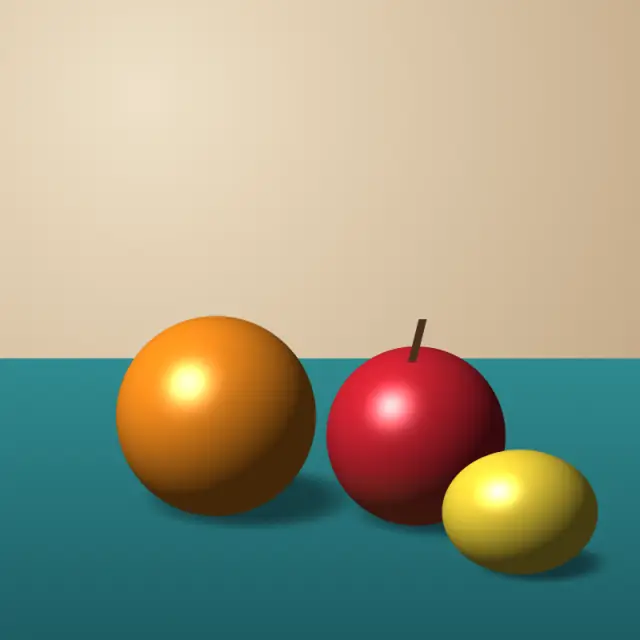
Original illustration
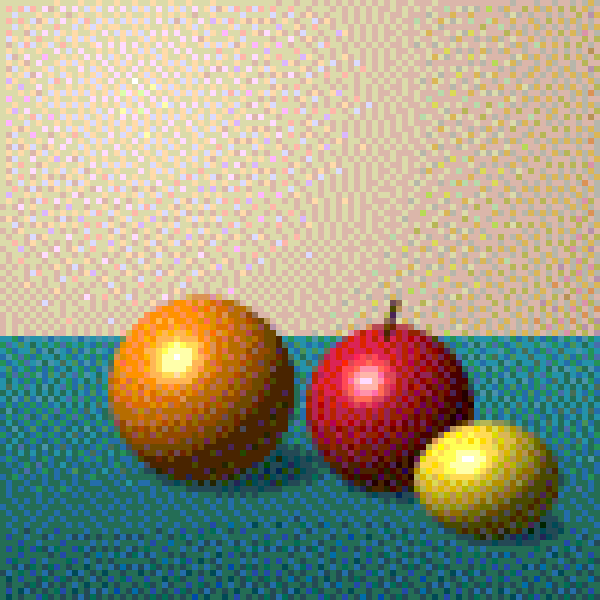
8-bit color, Floyd-Steinberg dithering
Add up to 30 photos (JPG, PNG, WebP, AVIF, HEIC and more, up to 50 MB each) and turn them into pixel art. The pixel size slider sets how big the blocks are, and you can reduce the colors by bit depth or to a retro palette, with Floyd-Steinberg dithering on by default. Download a PNG, a GIF or a sprite sheet. The photos are processed in your browser.
Turn any photo into pixel art
This free photo to pixel art converter gives regular photos a retro, blocky look for social media, game sprites or just for fun. A live before and after preview shows the result while you move the sliders.
How the conversion works
The tool divides your photo into a grid of square blocks and gives each block a single color. A larger pixel size means fewer, bigger blocks and a chunkier, more abstract picture. A smaller pixel size keeps more detail. The pixel size slider goes from 1 to 48, and the sprite size option can instead set an exact grid such as 32 × 32 or 64 × 64.
Color depth and palette options
You can keep full 24-bit color or reduce it to 16-bit (RGB565), 8-bit (RGB332) or 4-bit (16 colors). Each step down imitates older hardware, with bolder color areas and more visible banding.
Palettes give you a set color scheme instead: PICO-8, Game Boy, Commodore 64, NES, CGA, EGA and Minecraft, or a palette of 2 to 64 colors taken from your photo. Dithering (Floyd-Steinberg, or ordered Bayer 4×4 or 8×8) mixes neighboring blocks so gradients look smoother with few colors.
Private processing
Your photos are converted in your browser and never uploaded. Download the result as a lossless PNG, or switch the output to GIF or a sprite sheet.
Matching the pixel size to your photo
Pixel size counts source pixels, so the same setting gives very different results on different photos. A 4,000 × 3,000 phone photo at the default pixel size of 8 becomes a 500 × 375 grid, which keeps a lot of detail and reads more like a softened photo than pixel art. The same photo at pixel size 40 becomes 100 × 75, closer to an old game screen. For a sprite-like result whatever the resolution, set Sprite size to 64 × 64 or 128 × 128: the tool takes the center square and fits it to that exact grid. The preview shows the grid size, so you can check it before downloading.
Each block is blended from the photo pixels it covers, so sensor noise and fine texture mostly even out instead of turning into speckles. If a hardware palette makes your photo look off, choose "From the image" with 8 to 16 colors. That palette is built from the photo itself, so a sunset stays orange and purple and a forest stays green while the color count drops.
Default settings for this tool
The converter loads with a pixel size of 8, so each 8 × 8 block of your photo becomes one pixel. Colors are reduced to 8-bit (RGB332, up to 256 colors) with the palette set by bit depth. Floyd-Steinberg dithering is on: it spreads the rounding error of each pixel to its neighbors, which softens the bands that appear in skies and skin tones when colors are reduced. The result stays at about the original size.
Set Dithering to None for flatter color. A larger pixel size gives chunkier art, while a smaller one keeps more of the photo's detail.
Frequently Asked Questions
What is the best pixel size for converting photos to pixel art?
Start between 8 and 12 for a balanced retro look. Smaller values (4 to 6) keep more detail, and larger ones (14 to 20) give a chunky, abstract style. A high-resolution photo needs a larger pixel size for the same effect, because the size is measured in source pixels.
Can I turn a portrait photo into pixel art?
Yes. Portraits work well at 8-bit or 16-bit with Floyd-Steinberg dithering, which keeps skin tones smooth even with few colors. Try a pixel size around 6 to 10, and turn on the square crop if you want a profile picture.
Will my pixel art lose quality when I download it?
No. PNG output is lossless, so every pixel is saved exactly as shown in the preview, and transparent areas stay transparent. You can use the file for print, the web or game assets.
What image formats can I convert to pixel art?
PNG, JPG, WebP, AVIF, HEIC and HEIF, GIF (first frame) and BMP. The output is PNG by default, which keeps pixel edges sharp, or GIF or a sprite sheet if you choose.
Do I need any design skills to use this tool?
No. Add a photo, move the pixel size slider and pick a color depth or palette. The preview updates as you change settings, so you can try things until it looks right.