Original illustration
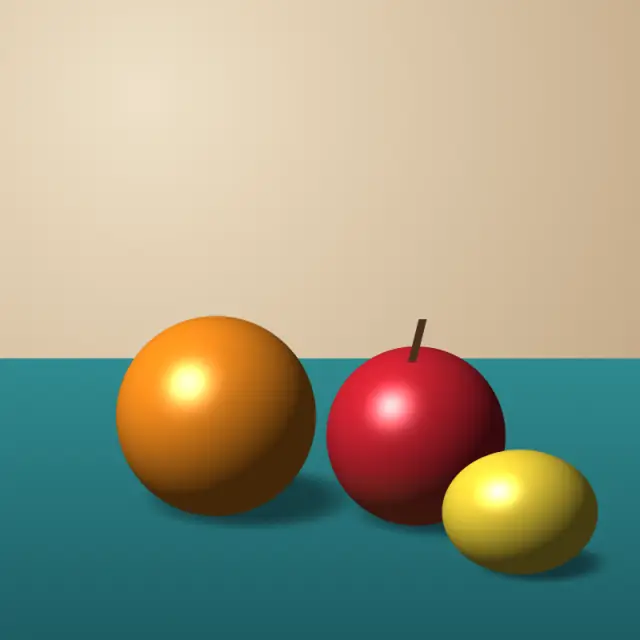
16-bit color, pixel size 8
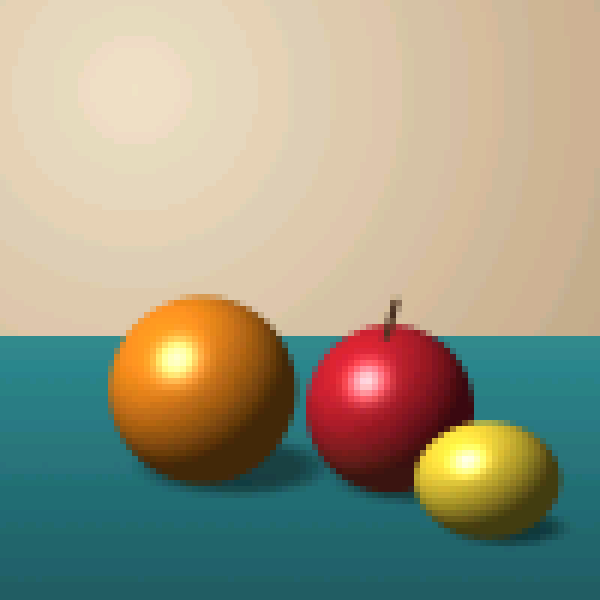
Add up to 30 images (JPG, PNG, WebP, AVIF, HEIC, GIF or BMP, up to 50 MB and 64 megapixels each) and convert them to pixel art in your browser. This page starts at pixel size 8 with 16-bit color and no dithering, which keeps the source's colors and mainly changes the resolution, and you can switch to fewer colors, retro palettes, dithering and an output scale. Results download as PNG, GIF or a sprite sheet.
Convert any image to pixel art online for free
A sunset photo becomes an 8-bit landscape, a portrait becomes a retro mosaic, and a logo becomes a small game-style asset. This free image to pixel art converter does it in your browser, without uploading your images.
How image to pixel art conversion works
Two steps produce the pixel art look. Downsampling lowers the resolution so each pixel becomes a visible block. Color quantization then maps the many shades in the image onto a smaller set of colors. Together they give bold blocks with clean edges and a limited palette.
The pixel size slider (1 to 48) sets how many blocks the result has, and the color depth or palette sets which colors they may use. Lower bit depths and small palettes push the result toward a retro look, and higher bit depths keep more of the original color for a subtle mosaic. Dithering arranges the available colors in patterns so gradients still read as gradients.
No software to install
You don't need Photoshop, GIMP or Aseprite, an account, or an email address, and the output has no watermark. Open the page in Chrome, Firefox, Safari, Edge or Brave, drop in an image, and adjust the settings while the live preview updates. The conversion runs in a background worker on your device's processor, so very large images take longer on slower devices.
Privacy: your images stay on your device
Loading, pixelating, reducing colors, dithering and saving all happen in your browser. Your images are never uploaded to our servers or stored in a database, which makes the tool suitable for client artwork, personal photos and unreleased game assets.
Supported formats and size limits
The converter reads JPG, PNG, WebP, BMP, GIF (first frame only), AVIF and HEIC. Each batch takes up to 30 files of up to 50 MB, and each image can be up to 64 megapixels and 16,384 pixels per side.
The default output is a lossless PNG that keeps pixel edges sharp, with GIF and sprite sheet as alternatives. Pixel art PNGs are usually small already, and the PNG compressor can trim them further without changing a pixel.
Tips for better conversions
Images with strong contrast, clear edges and simple compositions convert more cleanly than flat, low-contrast photos. Crop away empty background before you start so more of the grid goes to the subject, or turn on the square crop. Match the color depth to the style you want: the Game Boy palette (4 colors) or the 4-bit setting (16 colors) for a strict handheld or 8-bit look, 8-bit (256 colors) for a classic computer game feel, and 16-bit or 24-bit for a subtle mosaic that keeps most of the detail. Try the dithering modes: ordered dithering adds a retro crosshatch, Floyd-Steinberg gives smoother shading on faces and landscapes, and none keeps the clean blocks that suit logos.
Use cases
Game developers turn concept art and reference photos into assets for prototypes and game jams. Creators make pixel versions of their photos for Instagram, X and TikTok. Illustrations become designs for t-shirts, stickers, posters and enamel pins, and teachers use pixelated diagrams for a playful look in slides. Personal photos turned into retro game scenes make good gifts.
Export and share
Download the result as a PNG, which keeps any transparency from your original. For an animation, add several images and switch the output to GIF, or use a single image with the pulse, zoom or color-cycling effect.
Default settings for this tool
This page starts at pixel size 8 with 16-bit color (RGB565, up to 65,536 colors) and the palette set by bit depth. Dithering is off. With that many colors available, the result keeps the look of the source image and mostly changes its resolution. The output stays at about the original size.
For a more retro result, lower the bit depth to 8-bit or 4-bit, or pick a hardware palette such as NES or PICO-8. Increase the pixel size for bigger blocks.
Frequently Asked Questions
What image formats can I convert to pixel art?
JPG, PNG, WebP, BMP, GIF (first frame), AVIF and HEIC. The output is a lossless PNG by default, or a GIF or sprite sheet. Each file can be up to 50 MB and 64 megapixels.
How do I get the best pixel art results from a photograph?
Crop tightly around the subject, make sure there is good contrast, and choose a sprite size or pixel size that gives a grid of roughly 32 × 32 to 128 × 128. Then reduce the colors, for example to 8-bit or a 16-color palette, and try dithering for smoother transitions.
Is there a limit on how many images I can convert?
Each batch holds up to 30 images, and you can run as many batches as you like. There are no daily quotas and no charge.
Can I convert images without an internet connection after loading the page?
There is no offline mode. The conversion itself runs on your device, but the page, its image worker and some format decoders are downloaded when you first use them, so you need a connection to open and start the tool.