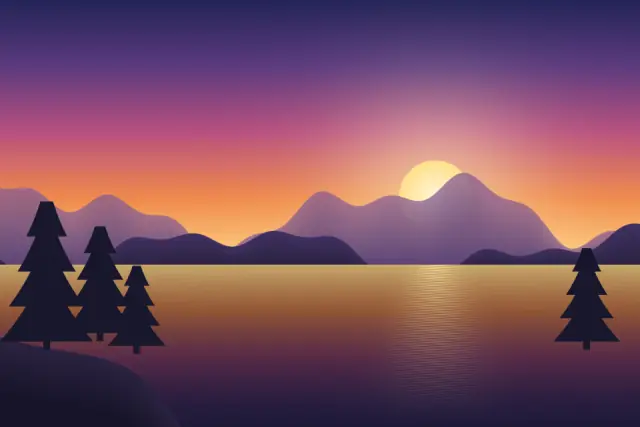
Original illustration
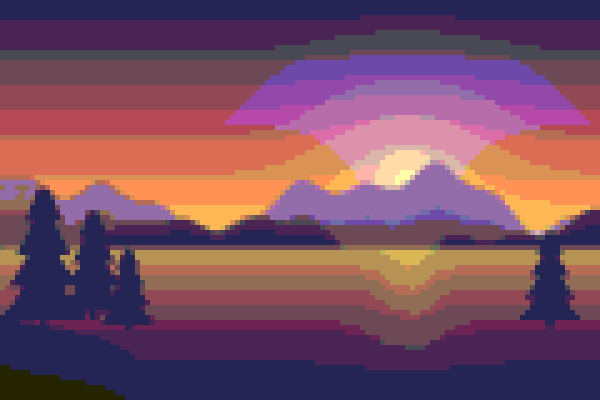
8-bit color, pixel size 8
Add up to 30 images (PNG, JPG, WebP, AVIF, HEIC, GIF or BMP, up to 50 MB each) and turn them into pixel art by setting the block size and the color depth: 24-bit, 16-bit (RGB565), 8-bit (RGB332) or 4-bit (16 colors). You can also pick a retro palette, one of three dithering modes and an output scale, and save the result as PNG, GIF or a sprite sheet with a JSON frame map. Everything is processed in your browser.
Pixel art converter with 24, 16, 8 and 4-bit depth
This page turns photos into retro pixel art and reduces their colors to a chosen bit depth. A live before and after preview shows the pixel grid, the output size and how many colors the result uses.
How to convert a photo to pixel art
- Add your image.
- Move the pixel size slider (1 to 48) to set how blocky it gets.
- Choose a bit depth: 24, 16, 8 or 4-bit.
- Download the PNG, or switch the output to GIF or sprite sheet first.
Default settings for this tool
This page opens with the converter's base settings. Pixel size is 8, so each 8 × 8 block of the photo becomes one pixel. Bit depth is 8-bit (RGB332), which allows up to 256 colors, and the palette follows the bit depth. Dithering is off. The output stays at about the original image size, and each block is drawn with nearest-neighbor scaling so its edges stay sharp.
Raise the pixel size for larger blocks, or lower it to keep more detail. Switch to 16-bit for smoother color or to 4-bit for a fixed set of 16 colors, and turn on dithering if gradients show visible bands.
Why use this pixel art generator
Your files stay on your device. You get four bit depths, nine palette options and three dithering modes on one page, and PNG output keeps sharp pixel edges and transparency. The sprite size option also gives an exact square grid (16, 32, 64, 128 or 256 pixels) when you need a sprite of a specific size.
Real-world use cases
Designers use it to mock up retro game sprites and backgrounds. Others make 8-bit style posts for social media or profile pictures. Students can watch what color quantization and palettes do to a photo. For hiding faces or text, use solid boxes instead, as explained on the pixelate image page.
Supported formats and compatibility
Input can be PNG, JPG, WebP, AVIF, HEIC or HEIF, GIF (first frame) or BMP. Output is PNG by default, which is lossless and keeps transparency, or an animated GIF, or a sprite sheet PNG with a JSON frame map. The tool runs in current desktop and mobile browsers, with no uploads and no account.
Tips and best settings
A pixel size of 6 to 12 gives a strong 8-bit look on most photos. 16-bit (RGB565) keeps more colors for a smoother retro game style, while 8-bit (RGB332) and 4-bit (16 colors) give the bold, low-color look. Keep the output as PNG so the edges stay crisp.
What is pixel art bit depth?
Bit depth is the number of bits used to store each pixel's color. More bits allow more colors.
24-bit (truecolor) uses 8 bits per channel for up to 16.7 million colors, so the result looks like the original photo, just pixelated. 16-bit (RGB565) uses 5 bits for red, 6 for green and 5 for blue, which gives 65,536 colors and a retro feel with little banding. 8-bit (RGB332) packs color into 3 bits of red, 3 of green and 2 of blue, so 256 colors in all, with the stylized look of early 1990s PC games. 4-bit maps every pixel to a fixed palette of 16 colors, which suits old-school game mockups.
Lower bit depths mean fewer colors, more banding and higher contrast, which is what reads as "retro". Combine that with a large pixel size and you get a convincing 8-bit or 16-bit look.
Dithering explained (Floyd-Steinberg, ordered 4×4 and 8×8)
With fewer colors than the original, smooth gradients break into bands. Dithering mixes neighboring pixels of different colors so the eye sees the in-between tones. Here it runs on the low-resolution grid, so the pattern is made of whole blocks.
Floyd-Steinberg is an error-diffusion method: it pushes each pixel's color error onto its neighbors and leaves an organic, slightly noisy texture. Ordered dithering (Bayer 4×4 or 8×8) uses a repeating threshold pattern, the tidy crosshatch seen in many classic games. None keeps flat fills, which suits logos, icons and minimal posters.
No mode is best for everything. 8-bit with Floyd-Steinberg gives natural transitions, and a 16-color palette with ordered 4×4 gives a console-style pattern.
Retro palettes you can use (PICO-8, Game Boy, C64, NES, CGA, EGA)
A palette is the fixed set of colors the image may use. When you pick one, it replaces the bit depth setting. The built-in palettes are PICO-8 (16 colors, the fantasy console used by many indie games), Game Boy (4 green shades), Commodore 64 (16 colors), an NES-style palette (41 colors), CGA and EGA (16 colors each), and Minecraft (16 wool colors). "From the image" builds a custom palette of 2 to 64 colors from the photo itself.
A small palette gives the strongest retro look, especially with dithering, and usually a smaller PNG file than full color.
Best settings and combos
For a photo turned into an 8-bit poster, use pixel size 8 to 12 at 8-bit with Floyd-Steinberg. For a clean 16-bit console look, use pixel size 8 to 10 at 16-bit (RGB565) with no dithering. For PICO-8 style, choose pixel size 10 to 14, the PICO-8 palette and ordered 4×4. A Game Boy mockup works at pixel size 12 to 16 with the Game Boy palette and ordered 4×4. For a C64 magazine look, use pixel size 8 to 12, the C64 palette and Floyd-Steinberg.
Common tasks
Each of these jobs can be done on this page by changing the settings. The linked pages open with the matching settings already selected.
- Turn a photo into 8-bit art with the NES palette: 8-Bit Photo Converter.
- Pixelate faces or text with large blocks and no color reduction: Pixelate Image Online.
- Reduce colors to 16-bit RGB565 with Floyd-Steinberg dithering: 16-Bit Art Generator.
- Use the PICO-8 palette with ordered dithering: Pixel Art Converter.
- Use the four-shade Game Boy palette: Pokemon Pixel Art Generator.
- Compare retro palettes such as Commodore 64, EGA and CGA: Pixel Art Color Palette.
- Scale existing pixel art up without blur: Resize Pixel Art.
For 4-bit color with a fixed set of 16 colors, stay on this page and set Bit depth to 4-bit.
FAQ: Pixel Art Converter
Does this upload files?
No. It runs in your browser and your images stay on your device.
What format is the output?
PNG by default. You can also choose GIF, including animations made from several images or from one image with a pulse, zoom or color-cycle effect, or a sprite sheet: one PNG with all frames plus a JSON file listing each frame's position.
Can I keep transparency?
Yes. PNG and sprite sheets keep transparency, and GIF keeps it as fully on or off. The "crisp" alpha option snaps soft edges to fully transparent or fully solid, which suits sprites.
What's the difference between 24, 16, 8, and 4‑bit?
More bits mean more colors and smoother gradients: 16.7 million at 24-bit, 65,536 at 16-bit and 256 at 8-bit. 4-bit uses a fixed 16-color palette for the most retro look.
Can I use this for game assets?
Yes. Set an exact sprite size such as 32 × 32 or 64 × 64, use crisp alpha for clean edges, and export a sprite sheet with its JSON frame map, which follows the TexturePacker JSON hash format that Phaser and PixiJS read.
What are the best settings for portraits vs landscapes?
Portraits usually look best at 8-bit with Floyd-Steinberg, which keeps skin tones smooth. Landscapes often look good at 16-bit (RGB565) without dithering, which keeps skies clean.
Does dithering increase file size?
Slightly, in most cases. Floyd-Steinberg adds fine noise that PNG compresses less well than flat fills, but pixel art PNGs stay small either way.
Can I use custom palettes?
You can't upload your own palette, but "From the image" builds one of 2 to 64 colors from your photo. The built-in palettes are PICO-8, Game Boy, C64, NES, CGA, EGA and Minecraft.