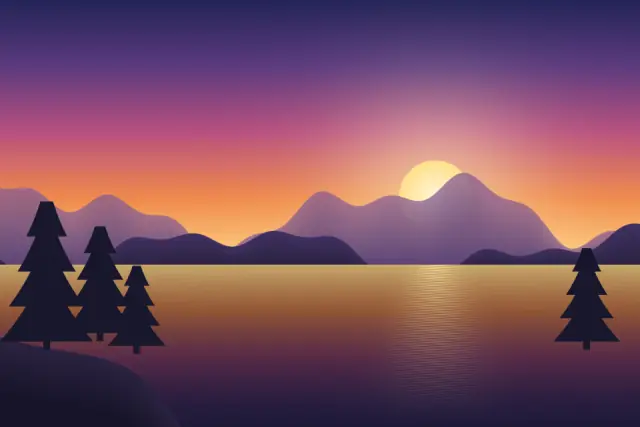
Original illustration
PICO-8 palette, Bayer 4×4
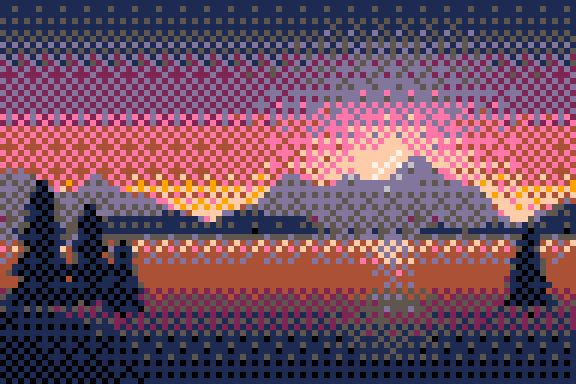
Add up to 30 images (PNG, JPG, WebP, AVIF, HEIC and more, up to 50 MB each) and turn them into pixel art. This page starts with pixel size 10, the PICO-8 palette and Bayer 4×4 dithering, and you can change every setting, from bit depth and palette to output scale. Save PNG, an animated GIF or a sprite sheet with a JSON frame map. The images are processed in your browser.
Create pixel art online for free
This pixel art converter turns images into pixel art in your browser, with no software to install and no account. Game developers use it for quick sprite drafts, designers for retro visuals, and creators for thumbnails and profile pictures.
What you can control
The pixel size slider runs from 1 to 48, from barely pixelated to big chunky blocks, and the sprite size option sets an exact square grid of 16, 32, 64, 128 or 256 pixels instead. Bit depth reduces colors to 24-bit (full color), 16-bit RGB565, 8-bit (256 colors) or 4-bit (16 colors). Dithering can be Floyd-Steinberg for an organic texture, ordered Bayer 4×4 or 8×8 for a regular retro pattern, or off for flat fills. The palettes are PICO-8, Game Boy, Commodore 64, NES, CGA, EGA and Minecraft, or a palette of 2 to 64 colors taken from the image.
Output can be scaled 1× to 16× with nearest-neighbor scaling, so the pixels stay square and sharp. You can crop to a center square and make soft edges crisp for sprites. With several images and Animate on, the images become the frames of a GIF or sprite sheet, and with a single image you can add a pulsing glow, zoom or color-cycling animation.
From photo to pixel art in three steps
Add a PNG, JPG, WebP, AVIF or HEIC image. Adjust the pixel size and choose a color depth or palette while you watch the live preview. Then download your pixel art as a PNG, GIF or sprite sheet. Your images never leave your device.
Why pixel art remains popular
Indie games such as Celeste, Stardew Valley and Dead Cells show that pixel graphics can look great and sell well. Pixel art also turns up in social media posts, music videos, fashion prints and illustration. Its limits on resolution and color push you toward bold, readable images.
Export as PNG for the best quality
PNG is lossless, so every pixel keeps its exact color and edges stay sharp, unlike JPG, which blurs them. Transparent areas of the original stay transparent, so the result can sit on any background.
What the PICO-8 palette does to a photo
PICO-8's 16 colors are black, four dark tones (dark blue, dark purple, dark green and dark gray), brown, a muted lavender, two light neutrals (light gray and an off-white) and seven bright colors: red, orange, yellow, green, blue, pink and peach. There is no mid blue between the dark blue and the bright one, so a sky tends to break up into bright blue, lavender and light gray depending on how deep it is. Light skin tones mostly land on peach, and darker ones on brown. Each block takes the nearest palette color, measured with a weighted RGB distance that counts green differences the most, which is closer to how the eye compares colors than plain RGB.
Bayer 4×4 dithering nudges each block slightly lighter or darker following a repeating 4 × 4 pattern before the nearest color is picked. Areas that sit between two PICO-8 colors become an even checker of both, and areas close to a single color stay flat. At pixel size 10 the pattern repeats every 40 source pixels, so on a 1920 pixel wide image (a 192 block wide grid) it reads as texture. On a small grid such as 32 × 32, the same pattern can look busy, and None often works better.
Default settings for this tool
The converter opens with pixel size 10 and the PICO-8 palette of 16 colors. With a named palette selected, colors come from that palette and the bit depth setting does not apply. Dithering is Ordered (Bayer 4×4), a small repeating pattern that blends neighboring palette colors. The output keeps about the original size.
Pick a different palette, such as Game Boy or EGA, to change the color set, or choose By bit depth to go back to 24, 16, 8 or 4-bit color. Lower the pixel size to keep more detail from the source image.
Frequently Asked Questions
Is this pixel art converter really free?
Yes. There are no fees, no watermarks and no sign-up. Each batch takes up to 30 images of up to 50 MB each, and you can run as many batches as you want.
What makes this different from a basic pixelation filter?
A basic filter only changes the block size. This tool also reduces the color depth, offers three dithering modes and seven built-in retro palettes, and can export animations and sprite sheets. The result looks like art from a classic console instead of a blurred mosaic.
Can I use the converted pixel art in my game?
Yes. PNG output works for sprites, tiles, backgrounds and interface art. Set the texture filter to nearest (point) in your engine so the pixels stay sharp when scaled. The sprite sheet export adds a JSON frame map in the TexturePacker JSON hash format, which Phaser and PixiJS read directly.
Does this tool work on mobile devices?
Yes. It runs in current browsers on phones, tablets and desktops, and the conversion happens on the device itself. You need a connection to open the page.
How do I get the best quality pixel art?
Start from a sharp, high-resolution image. 8-bit color with Floyd-Steinberg dithering gives a balanced retro look. Try a few pixel sizes, since the best one depends on the image, and save as PNG to keep the edges crisp.