Quick answer
Open the Minecraft pixel art generator, add your image, set Sprite size to 32 × 32 (or pick a pixel size), and set Output size to 1× the pixel grid. Every pixel of the downloaded PNG is then one wool block, in one of the 16 wool colors. Zoom in on the image and build it row by row.
The 16 wool colors
The generator maps every pixel to the nearest of these colors. Wool blocks have a textured surface, so each one is matched by a single representative color, listed here in the game's usual dye order with the values our converter uses.
| Color | Name | Hex | RGB |
|---|---|---|---|
| White | #e9ecec | 233, 236, 236 | |
| Orange | #f07613 | 240, 118, 19 | |
| Magenta | #bd44b3 | 189, 68, 179 | |
| Light blue | #3aafd9 | 58, 175, 217 | |
| Yellow | #f8c627 | 248, 198, 39 | |
| Lime | #70b919 | 112, 185, 25 | |
| Pink | #ed8dac | 237, 141, 172 | |
| Gray | #3e4447 | 62, 68, 71 | |
| Light gray | #8e8e86 | 142, 142, 134 | |
| Cyan | #158991 | 21, 137, 145 | |
| Purple | #792aac | 121, 42, 172 | |
| Blue | #35399d | 53, 57, 157 | |
| Brown | #724728 | 114, 71, 40 | |
| Green | #546d1b | 84, 109, 27 | |
| Red | #a12722 | 161, 39, 34 | |
| Black | #141519 | 20, 21, 25 |
Because the palette is fixed, bit depth doesn't apply. Colors that wool doesn't have, like dark skin tones, teal or very pale pastels, land on the nearest wool color, so it helps to check the preview before you start collecting blocks.
Choose the size of the build
Each pixel is one block, so the grid size is also the size of the build and decides how many blocks you need.
| Grid | Blocks | Stacks of 64 |
|---|---|---|
| 16 × 16 | 256 | 4 |
| 32 × 32 | 1,024 | 16 |
| 64 × 64 | 4,096 | 64 |
| 128 × 128 | 16,384 | 256 |
The Sprite size option gives these exact square grids by cropping the center of your image. For a rectangular image, use Pixel size instead: the grid is the image width and height divided by the pixel size. A 1,280 × 720 image at pixel size 20 becomes a 64 × 36 build.
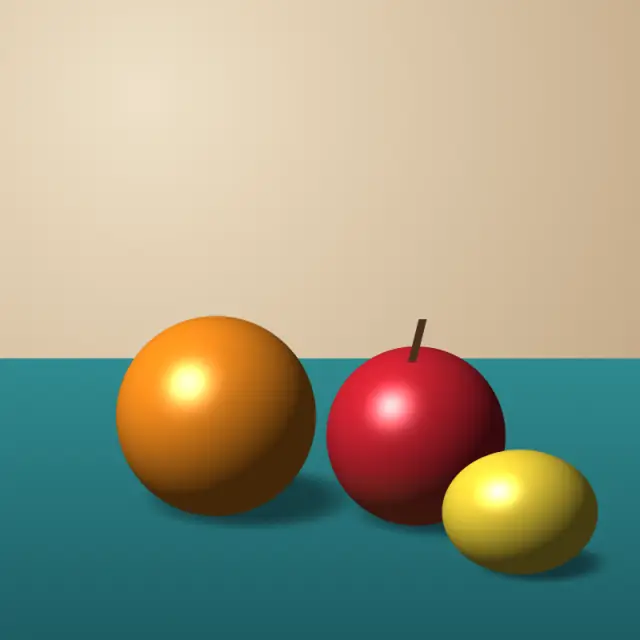
Original illustration
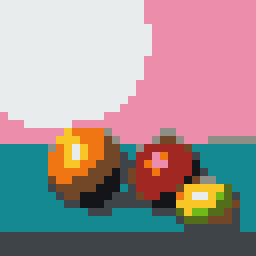
32 × 32 wool plan
Step by step
- Pick an image with a clear subject and few colors. Logos, game characters and cartoons convert more cleanly than busy photos.
- Add it to the Minecraft pixel art generator. The page starts with pixel size 16 and the wool palette.
- Set Sprite size, or adjust Pixel size until the preview looks right at the size you want to build.
- Set Output size to 1× the pixel grid and download the PNG. Every pixel is now one block. If your image viewer blurs it when zoomed in, download it at 8× instead; each block is then an 8 × 8 square.
- Build it. Laying the design flat on the ground first makes it easy to count rows; you can then copy it onto a wall. Work one row at a time from a corner and mark finished rows.
Tips for cleaner results
Simplify the image before converting. Raising contrast and saturation helps each area land on a single wool color instead of switching between two. Removing the background (with the background remover) leaves transparent pixels, which you can simply skip in the build.
Dithering is off by default, which keeps each area one flat wool color. Turn it on for photos with gradients, such as a sky; the pattern of two wool colors suggests a shade in between. The dithering guide shows what each method looks like.
Other pixel art palettes are listed with their hex codes in the retro color palettes guide.