Common sizes and what they are used for
| Size | Typical use |
|---|---|
| 8 × 8 | Tiles, tiny icons and font characters |
| 16 × 16 | Classic game sprites, items, favicons, Minecraft textures |
| 32 × 32 | Detailed characters and icons, favicons |
| 64 × 64 | Portraits, avatars, large characters, the Minecraft skin template |
| 128 × 128 | Small scenes, detailed avatars, the PICO-8 screen |
| 256 × 256 | Detailed illustrations and large pieces |
Sprite sizes are usually multiples of 8. Consoles like the NES and Game Boy built their graphics from 8 × 8 pixel tiles, and game engines still lay out tile maps on grids like that, so 16, 32 and 64 divide evenly into tiles. Nothing stops you from using 24 × 24 or 48 × 48, but sticking to these sizes makes art easier to reuse.
How the grid size changes the result
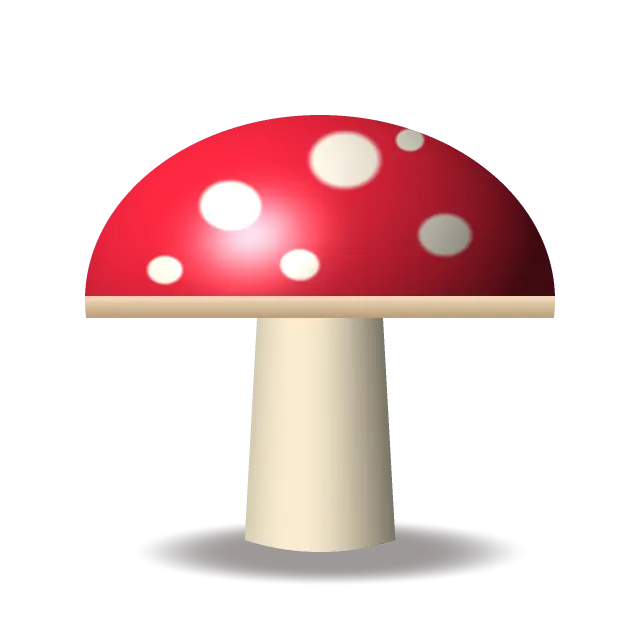
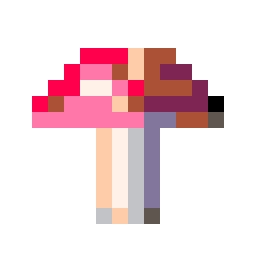
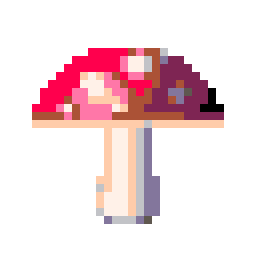
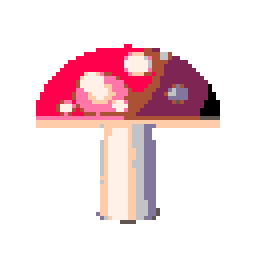
Smaller grids force you to drop detail and keep only the shapes that matter. At 16 × 16 a character is a silhouette with a few highlights; at 64 × 64 there is room for a face. Larger grids look closer to the original image and less like pixel art.
Original illustration
16 × 16
32 × 32
64 × 64
Classic screen resolutions
If you want a scene to match a specific console, use its screen size as your canvas.
| System | Screen resolution |
|---|---|
| Game Boy | 160 × 144 |
| NES | 256 × 240 |
| SNES | 256 × 224 (most games) |
| Sega Genesis (Mega Drive) | 320 × 224 |
| PICO-8 | 128 × 128 |
For new games and wallpapers shown on modern screens, pick a canvas that scales to the screen by a whole number. 320 × 180 enlarges 6× to exactly 1920 × 1080, and 640 × 360 enlarges 3× to the same size. Whole-number scaling keeps every pixel the same size on screen.
Make pixel art at an exact size
Every pixel art tool on this site has a Sprite size option with 16 × 16, 32 × 32, 64 × 64, 128 × 128 and 256 × 256. It crops the center of your image to a square, shrinks it to that grid and downloads it at exactly that size by default. The retro game sprite generator adds crisp transparency for sprites with cut-out edges, and the pixel art avatar maker starts with a square crop.
For a rectangular grid, use Pixel size instead. The grid is the image size divided by the pixel size, so a 1,920 × 1,080 photo at pixel size 6 becomes 320 × 180.
Export at a larger size for sharing
A 32 × 32 file is tiny on screen, and many apps blur small images when they enlarge them. Export a copy enlarged by a whole number with Output size (2×, 4×, 8× or 16× the pixel grid), or scale an existing sprite with Resize Pixel Art. A 64 × 64 avatar at 8× is 512 × 512, large enough that most sites shrink it rather than stretch it. The guide to resizing pixel art without blur explains how to keep edges sharp on websites too.
To start from a photo instead of a blank canvas, follow the photo to pixel art guide.